

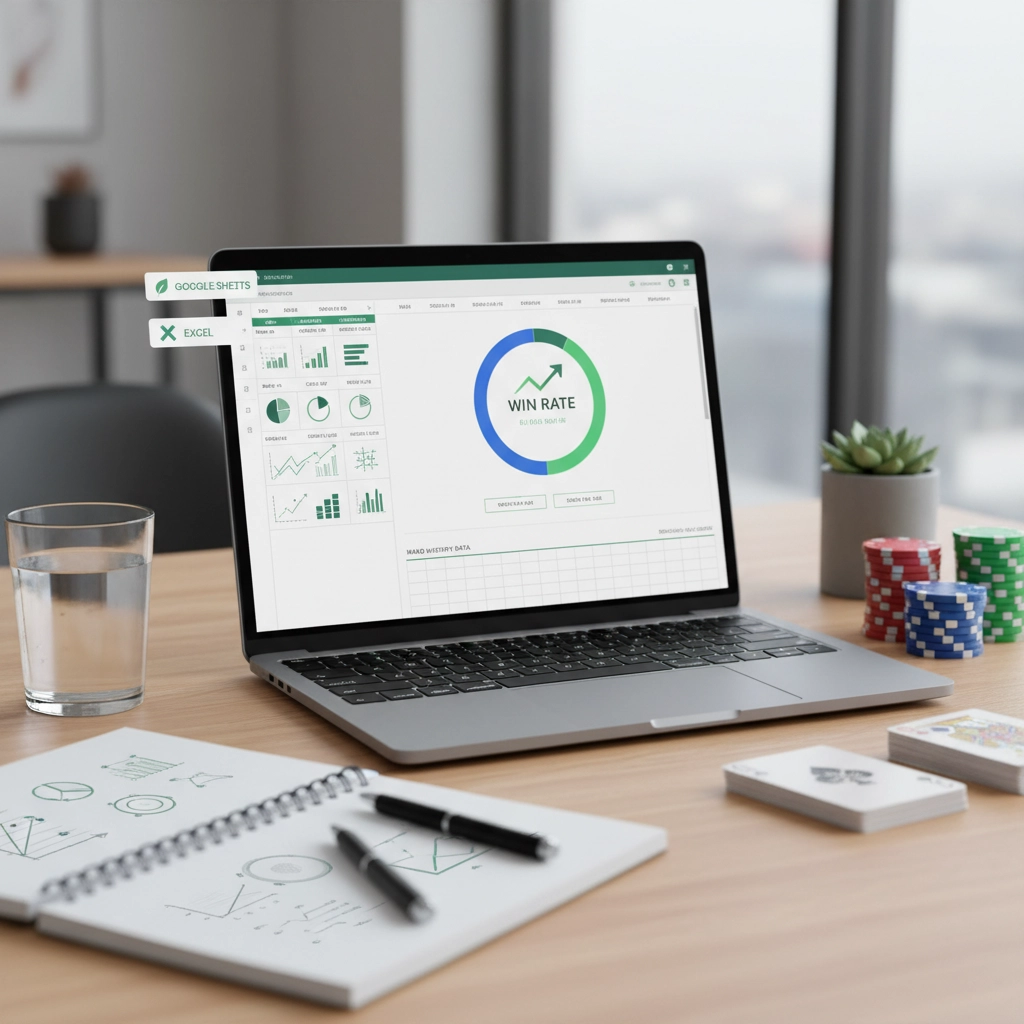
Why tracking your win rate transforms your poker practice
If you play poker seriously or want to improve from casual sessions, you need quantitative feedback. Tracking win rate gives you an objective measure of performance over time: how many big blinds you win per 100 hands (BB/100), hourly win rate, or ROI for tournaments. With a simple win rate calculator template in Excel or Google Sheets, you can move beyond gut-feel decisions and spot leaks, variance patterns, and profitable game types.
Using a spreadsheet lets you tailor the metrics you care about, automatically calculate moving averages, and visualize trends. You can import hand counts, stakes, buy-ins, and time played to compute standardized metrics that make cross-session comparisons meaningful. As you adjust strategy or table selection, the spreadsheet becomes a running experiment tracker where numbers show what really works.
Which win rate metrics matter and why
Not all win rate figures are equally useful. You should understand the common metrics your template should compute and why they matter:
- BB/100 (Big Blinds per 100 hands): Standard for cash games; normalizes results across stake levels by using big blinds instead of currency.
- Hourly win rate: Useful if you track hours played. Reveals whether your table speed or volume affects profitability.
- ROI (Return on Investment): Essential for tournaments; shows profit relative to buy-ins.
- Sample size / Confidence: Tracks number of hands or tournaments so you can judge statistical significance.
- Session variance and moving average: Smooths short-term swings to highlight real trends.
What a practical win rate calculator template should include
When you open or create a template, make sure it collects a few basic inputs for each session so all metrics can be derived automatically. At minimum, include:
- Date and game type: Cash (specify blinds) or tournament (specify buy-in and structure).
- Hands or entries: Number of hands for cash sessions; tournament entries or finishes for MTTs.
- Net profit or loss: In currency and, for cash, also in big blinds.
- Time played: For hourly rate calculation.
- Notes or tags: Table conditions, opponents, or strategy tweaks to correlate with results.
Beyond inputs, your template needs formulas to convert values (hands to BB/100), compute cumulative stats, and produce rolling averages. Both Excel and Google Sheets are capable of these calculations; the choice mostly depends on whether you want offline performance and advanced Excel functions or cloud sync and easy sharing with coaches.
In the next section you’ll see step-by-step builds: a ready-to-use Excel template with BB/100 formulas and a Google Sheets version optimized for automatic session summaries and simple charts.
Build a basic Excel win rate calculator (step‑by‑step)
Start with a single worksheet laid out as a table so formulas expand with new rows. Use these columns (one session per row): Date, Game Type, Blinds, BigBlind (currency), Hands, Time (hours), Net Profit (currency), Notes. Add calculated columns: Profit (BB), BB/100, Hourly.
Suggested formulas (assume row 2 is the first data row):
– Profit (BB): =[@[Net Profit]] / [@[BigBlind]] — converts currency profit into big blinds.
– BB/100: =IF([@[Hands]]>0, ([@[Profit (BB)]] / [@[Hands]])*100, “”) — standardizes across stakes.
– Hourly: =IF([@[Time (hours)]]>0, [@[Net Profit]] / [@[Time (hours)]], “”)
Turn the range into an Excel Table (Ctrl+T). Tables make structured references easier and keep formulas consistent for every new session.
Useful summary cells (above or beside the table):
– Total Hands: =SUM(Table1[Hands])
– Total Profit: =SUM(Table1[Net Profit])
– Overall BB/100: =IF(TotalHands>0, (TotalProfit / AverageBigBlind) / TotalHands 100, “”) — or better: compute via Profit(BB) totals: =IF(TotalHands>0, SUM(Table1[Profit (BB)])/TotalHands100, “”)
– Average Hourly: =AVERAGEIFS(Table1[Hourly], Table1[Hourly], “”) — excludes blanks
Advanced Excel features to add:
– SUMIFS/AVERAGEIFS: roll up stats by game type or date range (e.g., SUMIFS of Profit filtered by Blinds or date windows).
– Moving average: create a helper column that computes the N‑session or N‑hand moving average with =AVERAGE(OFFSET(…)) or with dynamic structured references if you want the last 50 sessions.
– PivotTable: quick breakdown by stake or by month (drag Hands, Profit into Values and Blinds/Game Type into Rows).
– Conditional formatting: highlight sessions where BB/100 is unusually high/low compared to your historical mean.
Store a single-sheet “Dashboard” that points to these summary cells and charts. Excel’s charting tools let you produce a BB/100 line with an overlaid moving average — useful for spotting real trends beyond variance.
Google Sheets template for automated summaries and simple charts
Google Sheets shines when you want cloud access, easy sharing with a coach, or automated data entry. Start with the same column layout as Excel, then add a few Google-specific automations.
Automated entry options:
– Google Form: build a simple form for session inputs (date, game type, blinds, big blind, hands, time, net profit, notes). Responses feed directly into the sheet — excellent for mobile entry after sessions.
– IMPORTRANGE: pull sessions from another sheet (useful if you keep separate workbooks for cash and tournaments).
– Apps Script: if you want to validate inputs, normalize blinds, or append rows programmatically, a short script can enforce formats and compute fields on submission.
Key formulas and queries:
– Profit(BB): =IFERROR(E2 / F2,””) where E = Net Profit, F = BigBlind.
– BB/100: =IF(B2>0, (G2 / B2)*100,””) adapting column letters.
– QUERY for summaries: =QUERY(A:G,”select C, sum(E), sum(B), avg(H) where A >= date ‘2025-01-01’ group by C”,1) — quick grouped results by game type or month.
– FILTER for dashboards: =FILTER(range, condition) to create dynamic tables that drive charts.
Visualization tips:
– Use a line chart of session BB/100 with a second series showing =ARRAYFORMULA(IF(ROW(A:A)0, NetProfit / BuyInTotal * 100, “”) and aggregate ROI using SUM and COUNT for sample-size aware analysis.
Both Excel and Sheets templates are powerful when you keep data clean, use tables/structured ranges, and separate raw session data from calculated summary dashboards.

Putting your tracking into action
Pick a template (Excel for powerful offline analysis or Google Sheets for cloud access and easy sharing), set up the minimal columns described earlier, and commit to entering sessions consistently. Use data validation, dropdowns, and a dedicated dashboard so the sheet stays usable as the dataset grows. Schedule short weekly reviews to check moving averages, table selection, and any strategy notes; iterate on the template as new questions arise. If you want a quick start with cloud templates and mobile entry, try Google Sheets and pair it with a simple Google Form for session logging.
Frequently Asked Questions
How many hands do I need before my BB/100 is meaningful?
There’s no exact cutoff, but BB/100 stabilizes slowly: aim for several thousand hands before treating short-term figures as reliable. For moderate confidence you’ll typically want 5,000–20,000 hands; fewer hands mean variance dominates, so rely more on moving averages and qualitative notes until your sample grows.
Should I track cash games and tournaments in the same workbook?
Yes—use the same workbook but keep raw data on separate sheets or tables (one for cash, one for tournaments). That keeps formats and formulas appropriate to each game type while allowing a single dashboard or summary page to compare ROI, hourly rates, and overall profitability.
Can I import hand histories or connect tracking software to Sheets/Excel?
Directly parsing raw hand-history files in Sheets/Excel is possible but usually requires an intermediate step. Many players export CSVs from tracking tools (PokerTracker, Hold’em Manager) and then import those into a sheet. In Google Sheets you can automate imports with Apps Script or use CSV import/IMPORTDATA; in Excel you can use Power Query to transform hand-history exports into your session table.